Homelab network diagram examples: three setups, from starter to study lab
· 3 min read
Three homelab network diagrams with their VLANs, addresses and hardware: a segmented home network, a self-hosting lab with a DMZ, and a two-site routing lab.
Every homelab ends up with a diagram, usually after the second time you forget which port the NAS is on. Here are three setups, from a sensible home network to a full routing lab, with the address plan for each. Steal whichever is closest to yours.
1. The segmented home network
The starting point for most people: one router, one small switch, one access point, and the devices you would rather keep apart.
| VLAN | Name | Subnet | What is on it |
|---|---|---|---|
| 1 | Main | 192.168.1.0/24 | Router (.1), switch (.2), AP (.3), NAS (.10), desktop, laptop, printer |
| 30 | IoT | 192.168.30.0/24 | Smart TV, doorbell camera, anything that phones home |
| 40 | Guest | 192.168.40.0/24 | Visitors' phones |
The hardware in our version is a Ubiquiti Cloud Gateway Ultra, a USW-Lite-8-PoE switch in the utility closet, one AP in the living room and a Synology DS923+ NAS. The point is the IoT VLAN: the camera and the TV can reach the internet but not the NAS. Write that rule down as a data flow so you remember why it exists.
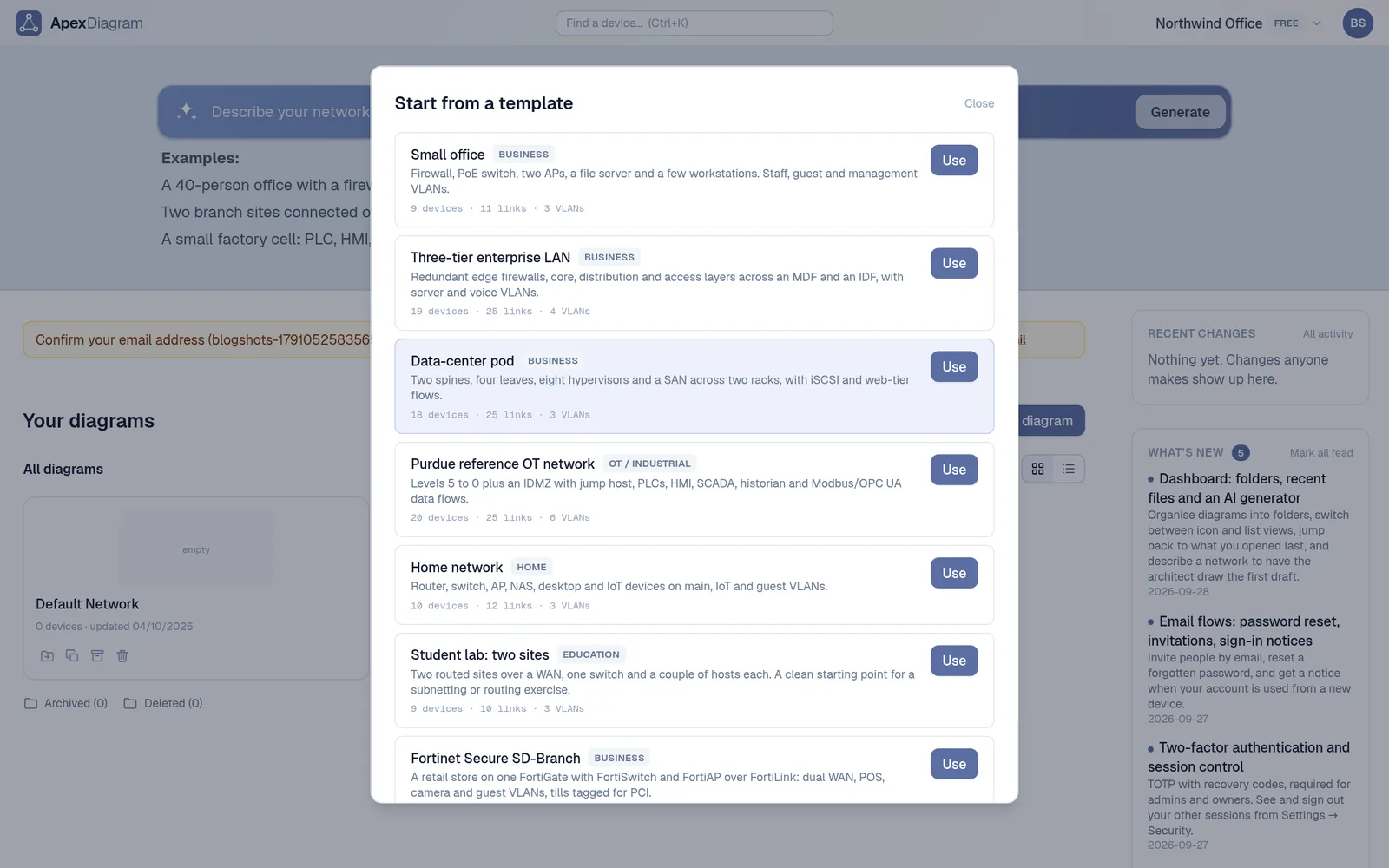
This is ApexDiagram's Home network template, so you can open it and change the names to yours.
2. The self-hosting lab
Once you run services other people use (a media server, a password manager, a game server for friends), you want a DMZ and a management network.
| VLAN | Name | Subnet | What is on it |
|---|---|---|---|
| 10 | Trusted | 10.0.10.0/24 | Your own devices |
| 20 | Servers | 10.0.20.0/24 | Hypervisor guests that only you use |
| 50 | DMZ | 10.0.50.0/24 | Anything reachable from the internet, behind a reverse proxy |
| 99 | Management | 10.0.99.0/24 | Hypervisor, switch and AP management interfaces |
| 30 | IoT | 10.0.30.0/24 | As before |
The rules that make it safe, written as flows:
- The internet reaches only the reverse proxy in the DMZ, on 443.
- The DMZ cannot start connections into Trusted, Servers or Management.
- Only Trusted can reach Management.
Draw the hypervisor as one server in the rack and give each VM that matters its own device, so the diagram shows which VLAN each service lands on. The diagram assistant flags a guest left with no address, or a static address you gave a VM inside the DHCP pool.
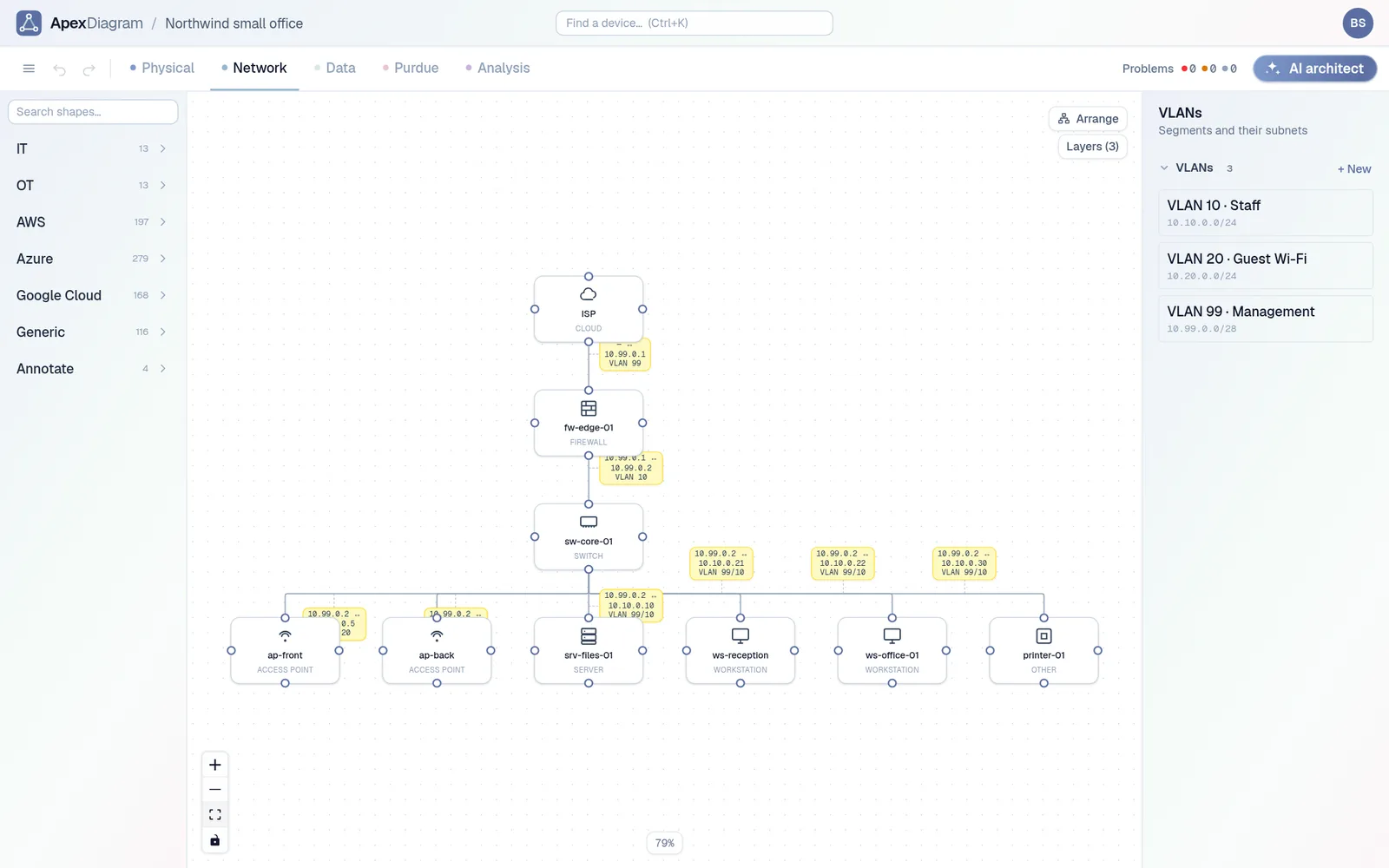 The Network view: addresses and VLANs on every link
3. The two-site routing lab
For studying: two routed sites joined over a WAN, the classic CCNA-style exercise.
| VLAN | Name | Subnet |
|---|---|---|
| 10 | Site A users | 172.16.10.0/24 |
| 20 | Site B users | 172.16.20.0/24 |
| 99 | WAN transit | 10.0.0.0/30 |
R1 and R2 take 10.0.0.1 and 10.0.0.2 on the /30, each with a switch and a few hosts behind it. The test flows are an HTTP request from a Site A PC to a server at Site B, and a ping across the WAN.
The useful trick here is that the diagram can become the lab. ApexDiagram's Containerlab export turns the Network view into a topology file: routers and switches become Nokia SR Linux nodes, firewalls become VyOS, everything else an Alpine container with its management address. Run sudo containerlab deploy -t lab.clab.yml and the network you drew is running on your laptop. This is the Student lab template.
Tips that apply to all three
- Name things for where they are. "ap-living-room" beats "AP2" when you are on a ladder.
- Write the gateway and DHCP pool for every subnet. Most homelab breakages are a static address inside the pool.
- Record the uplinks. Which switch port goes to the router is the thing you will forget.
- If you run UniFi, you do not need to draw it by hand: export your UniFi devices and clients and import the file.
Open the Home network or Student lab template and make it yours. See plans and pricing.
Document your network once, keep it current
One network graph, four synchronized views, a linter and a bill of materials. Import the Visio or draw.io file you already have.
Join the beta