How to turn an nmap scan into a network diagram
· 2 min read
Run one nmap command, drop the XML file into ApexDiagram, and get every live host as a device with its address, vendor and a guessed type. Then add the cables.
nmap is the fastest way to find out what is actually on a network. It is not, on its own, a diagram: it gives you a list of hosts. This guide turns that list into a diagram you can keep, in about five minutes.
Step 1: run the scan
On a machine inside the network you want to document:
sudo nmap -sV -oX scan.xml 192.168.1.0/24
-oX scan.xmlwrites XML, which is what the importer reads.-sVprobes open ports for service versions. The services help guess what each host is: a host answering on 9100 is probably a printer, one on 445 and 3389 probably Windows.sudomatters on a local segment: run as root, nmap reads each host's MAC address, and the MAC's vendor becomes the device's make.
Change the range to your subnet. Scan one subnet per file if you have several; that keeps each import tidy. Only scan networks you are responsible for.
Step 2: import the file
In ApexDiagram, drop scan.xml anywhere on the dashboard, or click Import. The format is detected from the content, so the file name and extension do not matter.
What you get:
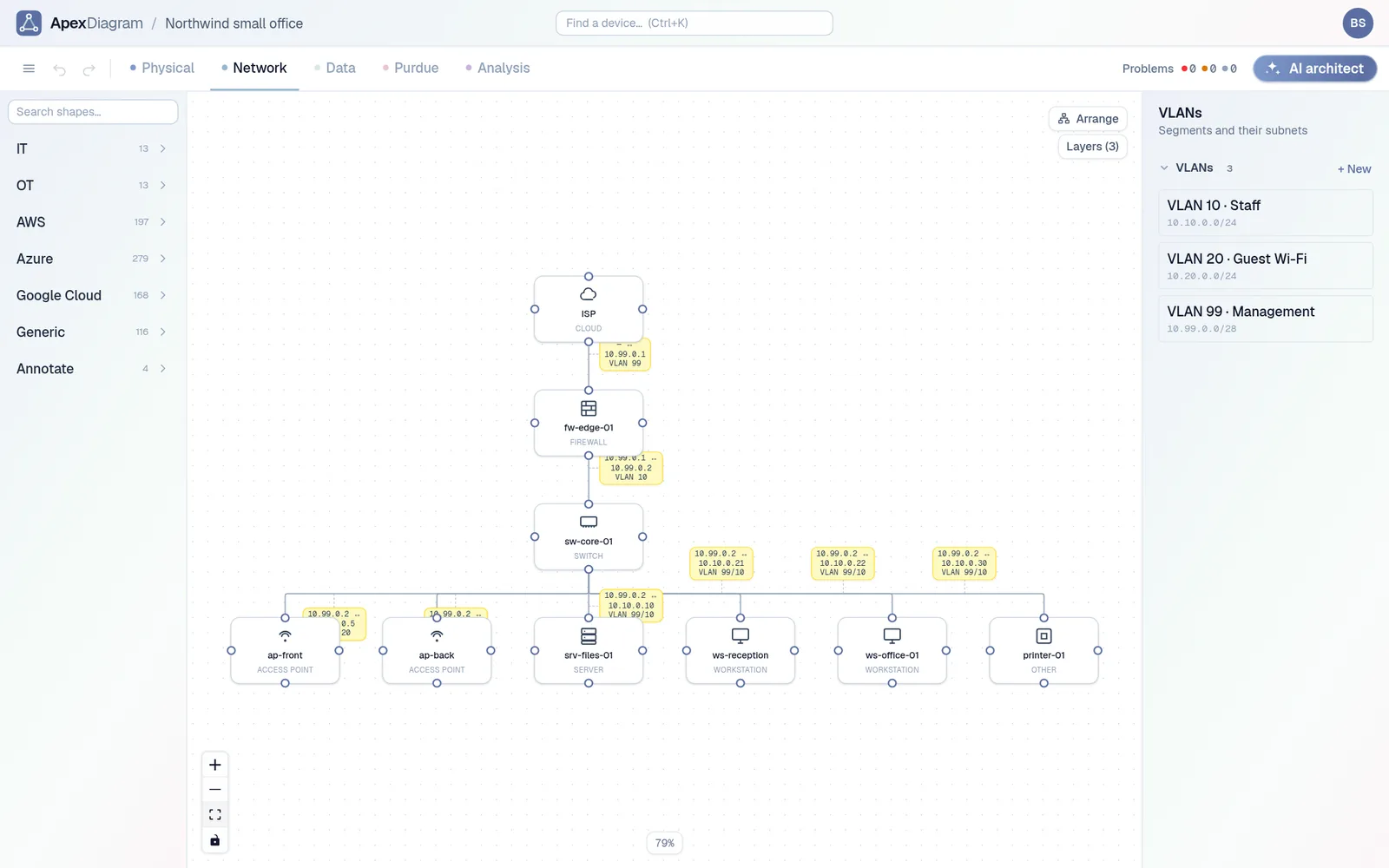
- One device per host that was up, with its IPv4 address and hostname.
- A make, from the MAC vendor when nmap saw it.
- A guessed type, from the vendor, hostname, open services and nmap's OS match. The guesses are conservative: anything unclear becomes a workstation, which you can change in a click.
- A subnet and VLAN, when the hosts share one /24.
Step 3: add what nmap cannot see
nmap sees hosts, not cables. It cannot tell you which switch port the printer is on, so the import comes in without links and says so. You have three ways to fill that in:
- Draw the uplinks by hand. For a small office this is ten cables and ten minutes.
- Import a neighbour table. If your switches speak LLDP or CDP, export the neighbour table as CSV and import it too. See Turn an LLDP or CDP neighbour table into a network map.
- Import from the controller. UniFi and Meraki exports include which switch port each client is on.
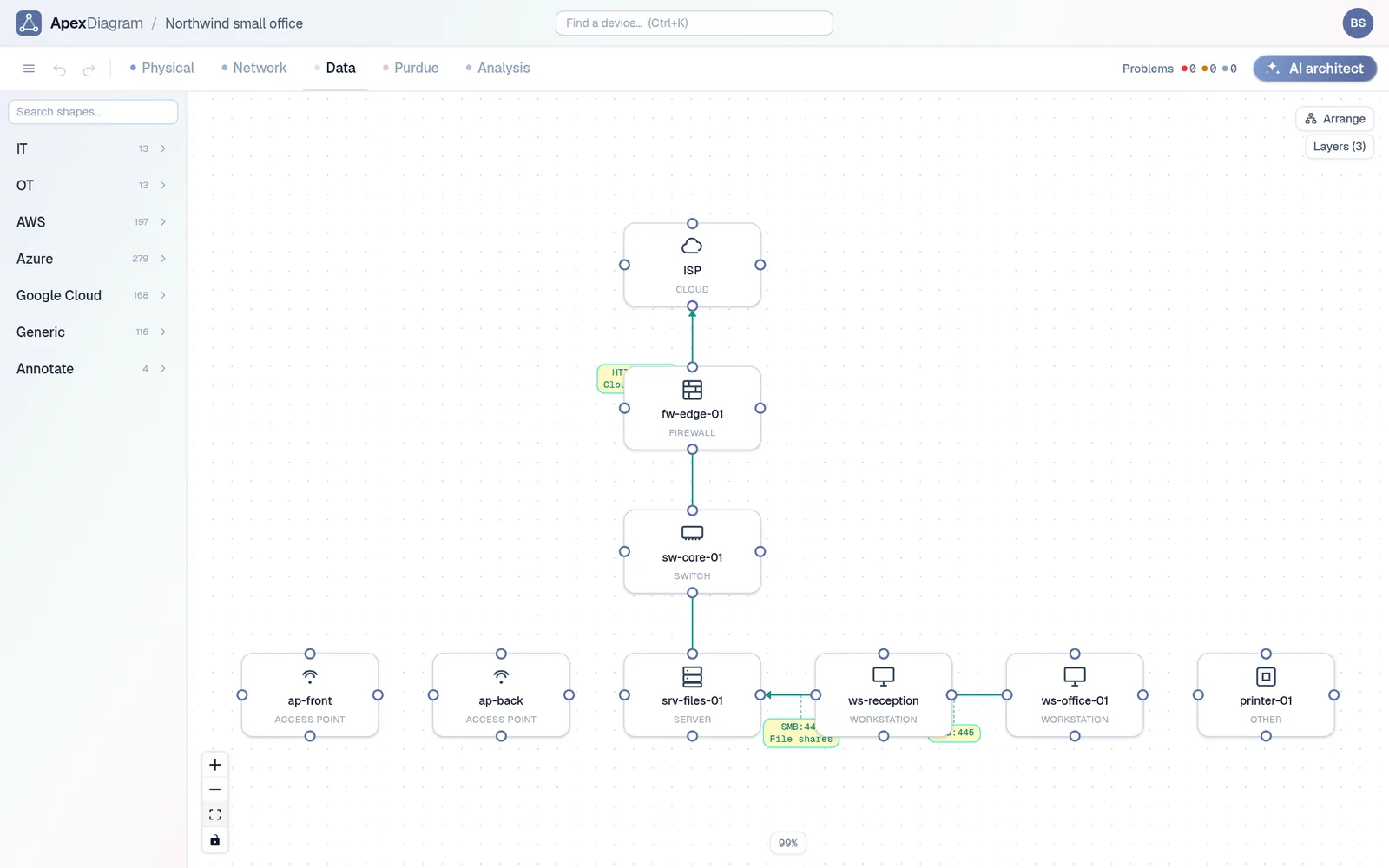
Then press Arrange in the Network view, open the diagram assistant, and fix what it finds: devices with no cable, duplicate names, missing makes and models on your infrastructure.
Step 4: keep it current
The real value is the second scan. Next month, run the same command and use Refresh from file on the diagram instead of importing a new one. ApexDiagram shows a diff before it changes anything: devices added, devices gone, addresses changed, field by field. A version is saved before you apply it, so you can always go back.
 Refresh from file: the diff of devices added, removed and changed
A host that appears between scans is worth a look. So is one that disappears.
What ApexDiagram does not do
ApexDiagram does not scan your network itself and does not run an agent on it. You run the scan, you look at the file, and you decide what goes in. For a lot of small businesses that is the point: nothing new is listening on the network. More on that in Does ApexDiagram scan my network?
Document your network once, keep it current
One network graph, four synchronized views, a linter and a bill of materials. Import the Visio or draw.io file you already have.
Join the beta